Below
is an outline of the steps needed to create a JCA Database Adapter in
JDeveloper. Specifically they focus on
how to create a JCA Database Adapter that can be imported into OSB. If you are creating a database adapter for an
existing SOA project then you can start on step 7.
1. Open JDeveloper
2. Create a new Generic
Application
3. Enter a name for the Application. You can reuse this same
application to create any JCA Adapters in the future so name it something
generic. For example “Connections”
4. Create a SOA Project
5. Create an Empty Composite
6. Drag the Database Adapter component
from the Component Palette into the External References swim lane.
7. A wizard will pop up which will
guide you through creating the JCA Database Adapter. There are 11 steps in this wizard.
a. Fill in the Service name and
then select Next (Step 2).
b. Select the appropriate
connection. It will automatically
fill in the JNDI Name. (Step 3)
c. Select all of the Operation Types
you want. For this example, we will be
able to Insert and Select from a table (Step 4).
d. Import all of the tables that you
want to operate on. You can import
parent/child tables. In this example, we
only have one table (Step 5).
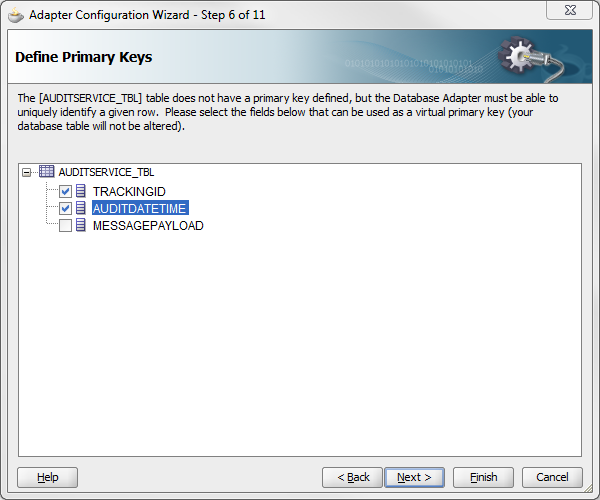
e. Define the primary keys (Step 6)
f. If you have selected multiple
tables. Define the relationships between
the tables. (Step 7)
g. Exclude any attributes that you do
not want to have access to. (Step 8)
h. If you only want to look at a subset
of data from the table(s), then you can write a query to narrow down the data
you will see. (Step 9)
i. Define Advanced Options. For most cases you can keep all of the defaults.
(Step 10)
j. Click Finish. This will create all of the files that you
need to import this JCA Adapter into OSB.