Showing posts with label Enterprise Service Bus. Show all posts

Monday, January 7, 2013

Creating a Business Service to Access a Database Table in OSB


There are several steps that need to be completed before you can create a business service in OSB to access/modify data in a database table.  At a high level you will need to create the JCA Adapter files in JDeveloper, create the data source/connection pools in Weblogic and then import the JCA Adapter files into OSB.  Below are the detailed steps.
1.   Create JCA Adapter in JDeveloper
         a.  See Creating a JCA Database Adapter in JDeveloper for more details.
2.  Create a zip file with the JCA Adapter files that you need for the import.  It needs to be in a zip file to import into OSB.  Note: You can get the location of these files by clicking on them in JDeveloper.
         a. Add the following to the zip file
                  i. <Project>.wsdl
                  ii. <Project>_db.jca
                  iii. <Project>_db-or-mappings.xml
                  iv. <Project>_table.xsd
3. Create a New Data Source in  Weblogic
         a.  For more details on this step see  Steps for Creating a New Data Source in Weblogic
4. Link DB Adapter outbound connection pool to a data source
         a. For more details on this step see Linking DB Adapter Outbound Connection Pool to Data Source
5.  Import JCA Adapter files
         a. Log into the OSB Console
         b. Navigate to the project you are working on
         c. Create a directory to hold the JCA Adapter files (<Project>/Resources/jca)
         d. In the Create Resource menu, select Bulk -> Zipped Resources


         e. Select the zip file created in step 2.


         f. Select Next
         g. All of the files that you added to your zip file in step 2 should now be displayed on the Review Loaded Resources page.


         h. Select Import.
         i . Fix Conflicts.   

Note: You will need to fix any path conflicts caused by moving all of the files into the same area. In JDev the schema files are in a different directory.

                  i. Click on View Conflicts.


                   ii. Start by fixing the wsdl conflict as this should resolve all of the conflicts. This can be fixed by changing the schemaLocation.


                  iii. Activate Changes.

4. Create Business Service
         a.  Create WSDL that will be used by the Business Service. This WSDL will have the operations that you specified when you were creating the JCA Database Adapter in step 1.
                  i.  Navigate to the *.jca file that was imported in Step 3 (<Project>/Resources/jca)
                  ii. In the Actions column next to the JCA Binding file imported click on the Generate WSDL and Service from this JCA binding resource button.


                  iii.  Specify the new WSDL Name and New Service Name. Also, choose a location for the new WSDL file. To avoid confusion, we put it in the BuisnessServices folder.


                  iv. Select Generate. 


Friday, December 28, 2012

Creating a Business Service to Publish to a JMS Queue/Topic


The following steps outline how to create a business service that will publish to a JMS Queue or Topic.  For this example, I created the Business Service in the OSB Console.  You could also use Eclipse and the steps would be very similar.

1.  Log into OSB Console.
2.  Create new project.  For this example I used the project name of PublishJMSQueue.
3.  Create a new folder called BusinessServices to hold the service we are going to create.
4.  Navigate to the BusinessServices folder and select Business Service from the Create Resource menu.


5.  Enter Service Name, select Messaging Service for the Service Type and click on Next.


6.  Select the Request Message Type, Response Message Type and click on Next.  For this example I am using Text for the Request Message Type and None for the Response Message Type.  Below is information on the other types from the Oracle Documentation.

None - Select this option if there is no request message (HTTP GET example)
Binary - Select this option if the content-type of the message is unknown or not important.
Text - Select this option if the message can be restricted to text.
MFL - Select this option if the message is a binary document conforming to an MFL definition. You can configure only one MFL file.
For MFLs, you can click Browse to select an MFL from the MFL Browser, then click Submit.
XML - Select this option if the message is an XML document. To provide some type information, you can choose to declare the XML schema type of the XML document exchanged.


7.  Select jms for Protocol, enter the Endpoint URI for the queue/topic you are publishing to, click on Add and then click on Next.  You can leave everything else with the default values.

Note:  The Endpoing URI follow the format of “jms://host:port(,host:port)*/FactoryJndiName/DestJndiName”.   If you are using a Weblogic queue/topic you do not need to change the FactoryJndiName, OSB will prepopulated the correct JNDI name.  You can get the DestJndiName from the Weblogic console (domain -> Services -> Messaging -> JMS Modules -> <Module Containing the Queue/Topic you are publishing to> -> JNDI Name)


8.  Set Destination Type, Message Type and then click on Last.  Everything else can remain at the default value.  For this example, we are using a queue for destination type and Text for message type.


       9.   Review Settings and then click Save.


     10.  Test Business Service.

Creating a JCA Database Adapter in JDeveloper


Below is an outline of the steps needed to create a JCA Database Adapter in JDeveloper.  Specifically they focus on how to create a JCA Database Adapter that can be imported into OSB.  If you are creating a database adapter for an existing SOA project then you can start on step 7.

1.  Open JDeveloper
2.  Create a new Generic Application


3.  Enter a name  for the Application.  You can reuse this same application to create any JCA Adapters in the future so name it something generic.  For example “Connections”
4.  Create a SOA Project


5.  Create an Empty Composite


6.   Drag the Database Adapter component from the Component Palette into the External References swim lane.
7.   A wizard will pop up which will guide you through creating the JCA Database Adapter.  There are 11 steps in this wizard. 
                a.  Fill in the Service name and then select Next (Step 2).
                b. Select the appropriate connection.  It will automatically fill in the JNDI Name. (Step 3) 


    c.  Select all of the Operation Types you want.  For this example, we will be able to Insert and Select from a table (Step 4).


    d.  Import all of the tables that you want to operate on.  You can import parent/child tables.  In this example, we only have one table (Step 5).


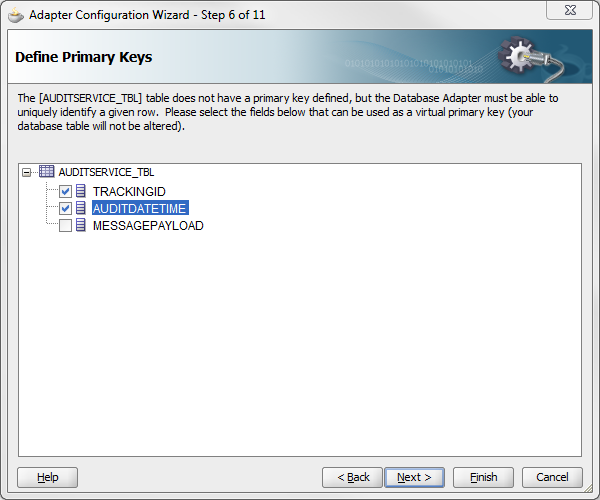
 e.  Define the primary keys (Step 6)


f.   If you have selected multiple tables.  Define the relationships between the tables. (Step 7)
g.  Exclude any attributes that you do not want to have access to.  (Step 8)


h.  If you only want to look at a subset of data from the table(s), then you can write a query to narrow down the data you will see. (Step 9)


i.  Define Advanced Options.  For most cases you can keep all of the defaults. (Step 10)


j. Click Finish.   This will create all of the files that you need to import this JCA Adapter into OSB.